
How to Make a Professional PowerPoint Presentation: A Step-by-Step Tutorial
Key Takeaways
- Plan your message clearly before designing slides to engage your audience.
- Use consistent and simple slide designs that support your story.
- Incorporate visuals and data carefully to boost clarity and interest.
- Practice effective delivery techniques to present with confidence.
- Leverage trusted tools like Manus AI to streamline your content creation process.
Creating a professional PowerPoint presentation isn’t just about putting words on slides. It’s about telling a story clearly and confidently so your audience stays engaged and remembers your message. Whether you’re a consultant pitching to clients, a business owner sharing ideas, or an entrepreneur seeking investment, knowing how to craft and deliver a polished presentation is crucial. In this guide, I’ll walk you through the essential steps to make a PowerPoint that looks sharp, feels professional, and works effectively every time.
Start with a Clear Plan: Define Your Goal and Audience
Before opening PowerPoint, ask yourself: What is the main goal of this presentation? Are you trying to educate, persuade, or update your audience? Knowing this helps you focus your content and design choices. For example, a sales pitch requires a different tone and flow than a project status update.
Next, identify your audience. What do they already know? What do they care about? This knowledge will guide how much detail you include and the vocabulary you use. According to Forbes, understanding your audience is one of the top factors in presentation success.
Once you have your goal and audience clear, outline your key points. Organize your ideas logically—usually with a clear beginning, middle, and end. This blueprint is the foundation of your presentation.
Design Slides for Clarity and Consistency
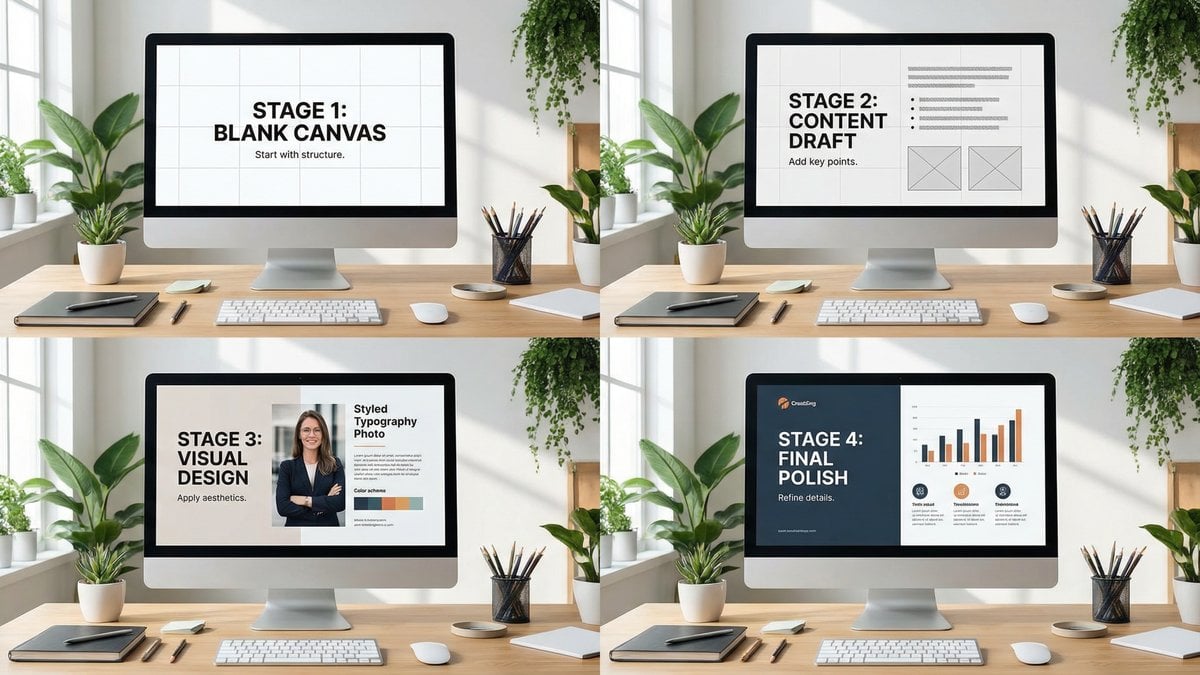
Now it’s time to build your slides. Keep these design principles in mind:
- Keep it simple. Avoid clutter. Each slide should cover one idea.
- Use consistent fonts and colors. Choose easy-to-read fonts like Arial or Calibri, and stick to a color scheme that reflects your brand or topic.
- Limit text. Use bullet points or short sentences. Aim for no more than 6 lines per slide and 6 words per line.
- Add visuals. Images, charts, and icons help explain points faster than text alone.
For example, instead of listing sales numbers in bullet form, use a clean bar chart. Visuals make data easier to digest and more compelling.
| Design Element | Do | Don’t |
|---|---|---|
| Font Size | Use at least 24pt for body text | Use fonts smaller than 18pt that require squinting |
| Color Scheme | Use 2-3 colors with good contrast | Use bright or clashing colors that distract |
| Slide Layout | Keep consistent margins and alignments | Scatter text and images randomly |
| Text Amount | Use concise bullet points | Fill slides with paragraphs of text |
Use Data and Visuals to Boost Credibility
Numbers and facts add weight to your message. But overwhelming your audience with raw data can backfire. Instead, pick only the most important statistics that support your point. Present them visually—charts, graphs, or infographics.

For instance, if you want to show market growth, a simple line graph is clearer than listing percentages. When citing facts, always use reliable sources. The Pew Research Center is a great place for trustworthy studies and stats.
Remember to attribute your sources on the slide or in a handout. This builds trust and demonstrates your expertise.
Master Your Delivery: Practice and Engage
Even the best slides won’t make an impact if your delivery is weak. Practice your presentation multiple times to build confidence and smooth out rough spots. Time yourself to keep within limits.
Focus on speaking clearly and at a steady pace. Use natural gestures and make eye contact with your audience. If you’re presenting remotely, ensure your camera and audio are high quality and your background is tidy.
Engage your listeners by asking rhetorical questions or pausing for effect. Use transitions to guide them through your story (“First, let’s look at…”, “Now, moving on to…”).
Leverage Tools to Save Time and Enhance Quality
Creating professional presentations can be time-consuming. Luckily, there are tools to help streamline the process. For example, I recommend exploring platforms that assist with content structuring and design suggestions. One such tool, Manus AI, can help organize your ideas and polish your slides faster, leaving you more time to focus on your delivery.
Remember, tools are aids—not replacements for your judgment. Always review your slides to ensure they align with your message and style.
Conclusion
Making a professional PowerPoint presentation is a skill anyone can develop. Start with a clear plan, design simple and consistent slides, use visuals and data smartly, and practice your delivery. With these steps, you’ll create presentations that inform, engage, and persuade. And by leveraging trusted tools thoughtfully, you can save time and boost your effectiveness. Ready to take your presentations to the next level? It all starts with a commitment to clear, confident communication.
Ready to transform your presentations? Work with Melinda at TheSlidehouse →
🎁 Free Download: 5 Slides That Win Clients
Enter your email to get instant access to your free Presentation Design Cheat Sheet + the 5 slides every winning client deck must have.
Frequently Asked Questions
How many slides should a professional presentation have?
A good rule of thumb is one slide per minute of speaking time. For a 15-minute presentation, aim for 10-15 slides. This keeps your message focused and your audience engaged.
What is the best font size for PowerPoint slides?
Use at least 24 points for body text and larger sizes for headings. This ensures readability even for people sitting at the back of the room.
Should I read directly from my slides?
No. Slides are there to support your talk, not replace it. Use them as prompts and elaborate verbally to keep your audience interested.
How can I make my presentation more engaging?
Incorporate stories, visuals, and interactive elements like questions or polls. Also, vary your tone and pace to keep energy high.
Need a presentation designed for you? TheSlidehouse creates professional slide decks for consultants, business owners, and entrepreneurs. Get started here →
If you want to automate research, drafting, and publishing workflows, Manus AI is worth considering for teams that need a more hands-off content engine.
For additional research, see Harvard Business Review for business communication and leadership.
If you want to go deeper, read How to Make a Presentation More Persuasive for another practical example. If you want to go deeper, read Pitch Deck Mistakes Founders Make for another practical example.

Melinda Pearson is the founder of The Slide House and a presentation designer with 10+ years of experience helping consultants, startup founders, and business owners turn complex ideas into clear, persuasive slide decks. Learn more about Melinda.
Frequently Asked Questions
What should how to make a professional powerpoint presentation: a step-by-step tutorial include?
How to Make a Professional PowerPoint Presentation: A Step-by-Step Tutorial should include a clear narrative, concise visuals, and a direct explanation of what the audience should do next.
How long should how to make a professional powerpoint presentation: a step-by-step tutorial be?
Most business presentations work best when each slide has one core point and the overall deck stays focused on the decision being made.
How can I make the slides more persuasive?
Use evidence, strong structure, and examples that match the audience’s priorities, then reinforce the recommendation with a clear next step.
Should I include supporting data?
Yes. Use only the evidence that helps the audience make the decision, and present it in a visual format that is easy to understand quickly.